

Export formats
Beebole exports report data in the following formats, all available from the report’s Export submenu:
Table exports include the report’s columns and respect the filters applied to the report. CSV files separate values with commas, or with semicolons when your Decimal format in Localization uses a comma.
Built-in reports such as Budget Status have their own Export button, which offers JSON, CSV, TSV, Excel (XLSX), and PDF.
Excel and PDF specifics
- Excel (XLSX) files open with every column already sized to its contents. Beebole measures each cell of every row, not just the headers, so long project names, comments, and custom field values are readable straight away — with a cap so one very long value cannot push the rest of the sheet off screen.
- PDF files carry their own embedded font, so accented Latin characters, Cyrillic and Greek alphabets, currency symbols, arrows, and mathematical signs all print correctly instead of coming out as empty boxes. A character outside that range prints as a question mark.
- A report with more than six columns is laid out in landscape, and a table still too wide for one page continues on the following pages with the first column repeated — so every row stays identifiable across the split.
Exporting a report
1
Open Reports
Click Reports in the sidebar and open the folder that contains your report. You can export any report, including your saved custom reports.
2
Open the report's action menu
Hover over the report in the list and click the ⋯ action menu next to its name.
3
Choose Export and a format
Click Export, then pick a format from the submenu — for example Excel (XLSX) or CSV.
4
Download the file
Beebole runs the report if it is not already open, then your browser downloads the file. The filename includes the report name, plus its period when one is set.
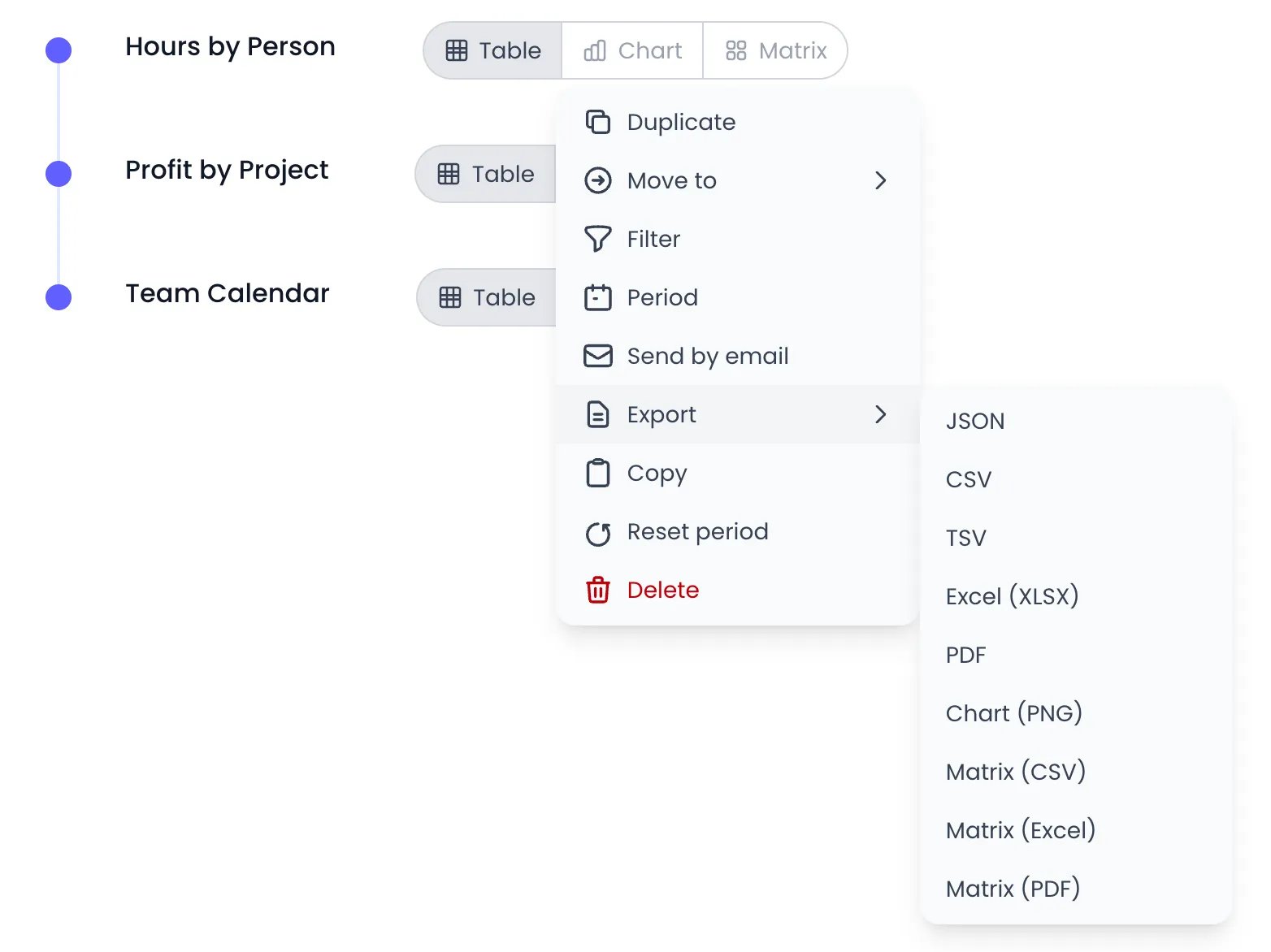
The Export submenu of a report's action menu
The exported file contains exactly the data displayed in your report. If you need different data, adjust your filters or columns before exporting.
What is included in exports
Exports contain:- All rows visible in the report, respecting applied filters
- All selected columns, including financial data (billing, cost, profit) and custom field values
- The period appears in the export filename
Exports respect your permissions. If you cannot see certain projects or people in reports, that data is left out of your exports as well.
Tips for working with exported data
- Apply the filters you need in Beebole before exporting, so there is less cleanup to do in your spreadsheet.
- Give your reports descriptive names: the export filename is built from the report name, so files are easy to identify later.
- If you plan to merge the data with other systems, add identifying columns such as person emails, IDs, or custom field values to the report before exporting.
Alternatives for recurring exports
If you need to pull Beebole data into a spreadsheet regularly, consider using a direct connection instead of manual exports:- Excel add-in — Link Excel worksheets to your saved Beebole reports and refresh the data without manual downloads
- Google Sheets add-on — Link Google Sheets to your saved Beebole reports and refresh the data from a sidebar
GDPR and personal data
Account deletion
If you need to delete the organization and all associated personal data — for example, to honor a right-to-erasure request — go to Settings > Delete Account. During the grace period, Beebole displays a banner showing who scheduled the deletion and how long remains. An admin can click Cancel deletion — in the banner or on the Delete Account page — to stop the process and keep the account.For an individual data deletion request, such as removing one person’s data, delete that person’s time entries first, then open their profile in People, click the ⋯ action menu, and click Delete. Beebole refuses to delete a person who still has time records or approval history, manages other people, or owns tasks, and its message names what is still linked to them. Contact support@beebole.com if you need help handling a specific GDPR request.
Related content
Audit Trail
Review a complete log of changes before exporting for compliance.
Account Settings
Configure organization-wide settings, including deleting your organization.
Custom Reports
Build and save the exact report you need before exporting it.
Frequently asked questions
Can I export all data from my account at once?
Can I export all data from my account at once?
Beebole exports are based on the report you have configured. To export all time data, create a report with no filters and a Custom period covering your entire account history, then export it.
Are exported files limited in size?
Are exported files limited in size?
Beebole exports all matching data. For very large datasets, the download may take a moment. If performance is an issue, narrow your date range or apply additional filters.
Can I export expense data?
Can I export expense data?
Yes. In Beebole, create a report, add an Expense column (such as Amount or Quantity), and export it. Expense data supports the same export formats as time data.
Why do some characters print as question marks in a PDF export?
Why do some characters print as question marks in a PDF export?
Beebole’s PDF exports embed a font covering the Latin, Greek, and Cyrillic alphabets, plus currency, arrow, and mathematical symbols. Anything outside that set — for example Chinese, Japanese, or Arabic text in a project name or comment — prints as a question mark. Export those reports as Excel (XLSX) or CSV instead, which carry any character.
Do exports include budget information?
Do exports include budget information?
Yes. Open the Budget Status report in Beebole and click its Export button to download budget progress as JSON, CSV, TSV, Excel (XLSX), or PDF.